| Home > NDFD > NDFD WFS |
|
|
Connecting UDIG to NDFD Web ServicesThe open source application
User-friendly Desktop Internet GIS (uDig)
can successfully import National Digital Forecaset Database (NDFD) data using the Open Geospatial
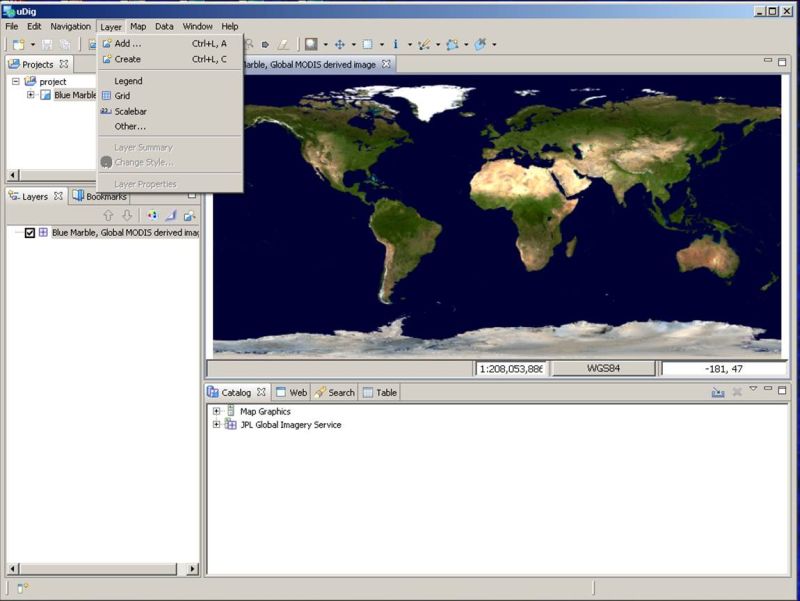
Consortium (OGC) Web Feature Service (WFS) standard. To import NDFD data follow the steps below: start uDig and then select the "Layer" menu and then the "Add" submenu item.
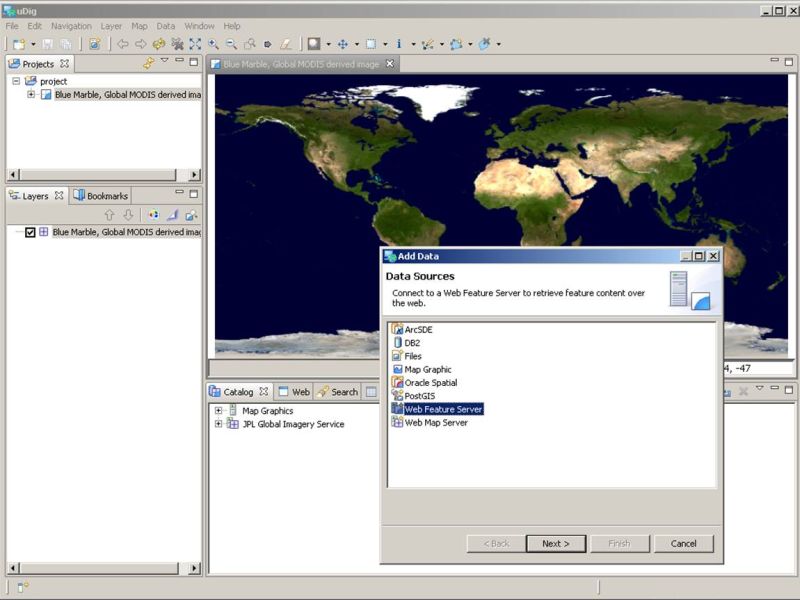
See the image below. Next select the "Web Feature Service" item from the list of data sources.
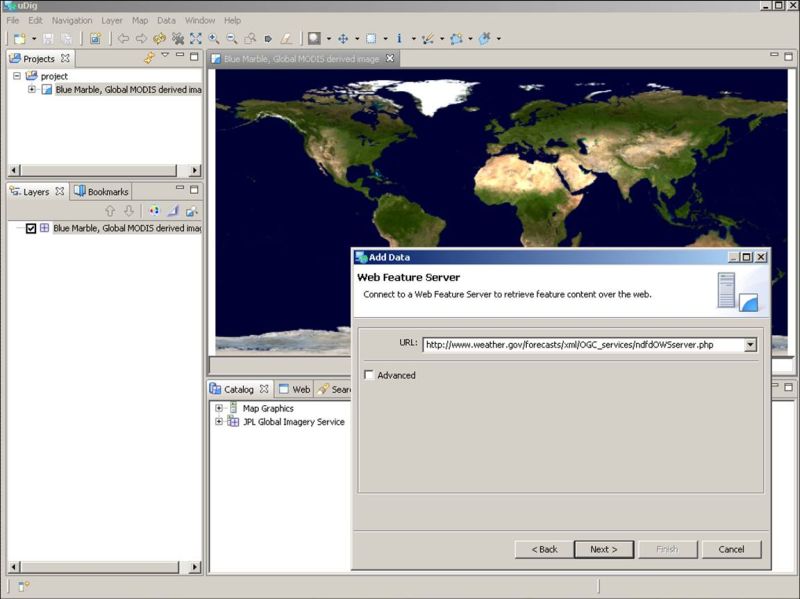
See the image below. Now click on the "Next" button which takes you to a menu where you can enter information
about the WFS. Enter the NDFD WFS URL
(http://www.weather.gov/forecasts/xml/OGC_services/ndfdOWSserver.php) in the entry area provided.
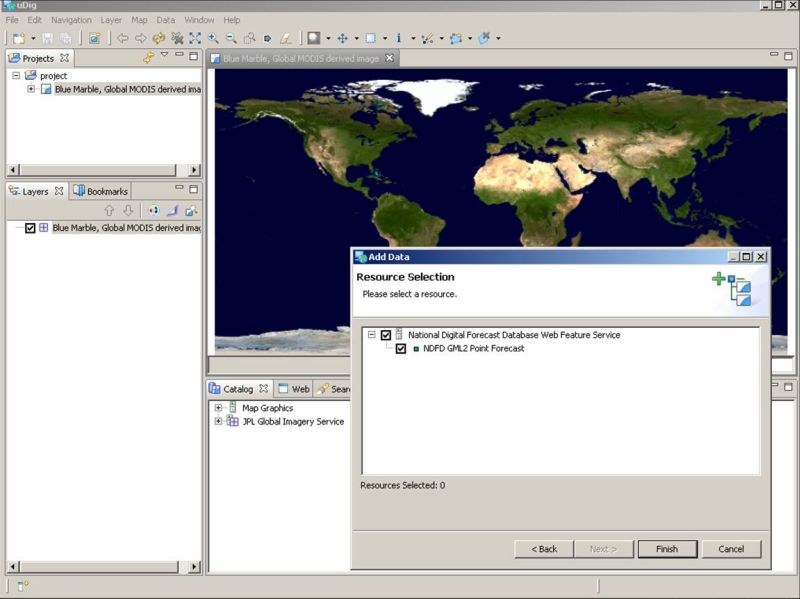
See the image below. Click on the "Next" button which takes you to the window showing the resouces available
from the NDFD WFS. Simplely click the "Finish" button to begin the process of importing
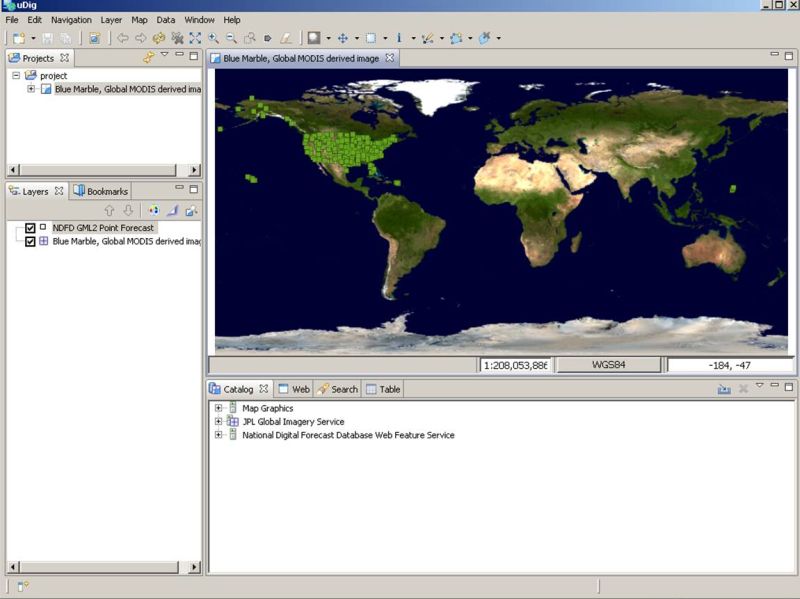
the NDFD data. See the image below. Following a delay while the requested feature is retrieved from the NDFD WFS, you will see
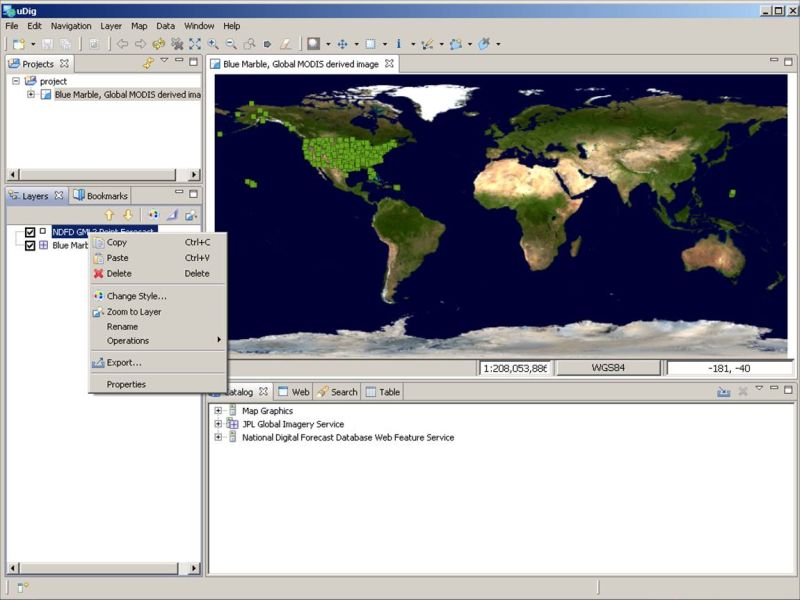
data point displayed on the current map. See the image below. To display the data values (feature attributes) for each point, right click on the feature
name ("NDFD GML2 Point Forecast") in the "Layers" section
(lower left panel) of the uDig window then select the "Change Style" submenu item.
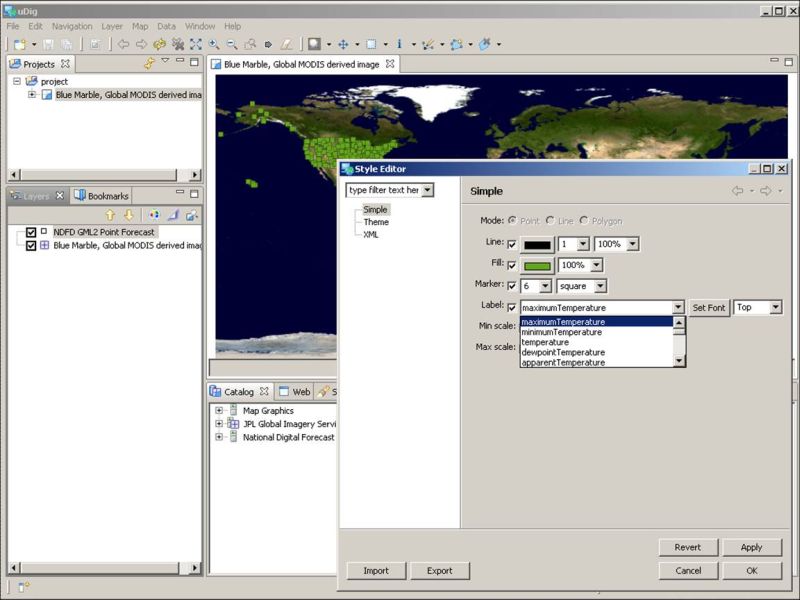
See the image below. You should now see the "Style Editor" window.
See the image below. Now select the "Label" check box and then select from the pulldown menu the
NDFD element that you want to display.
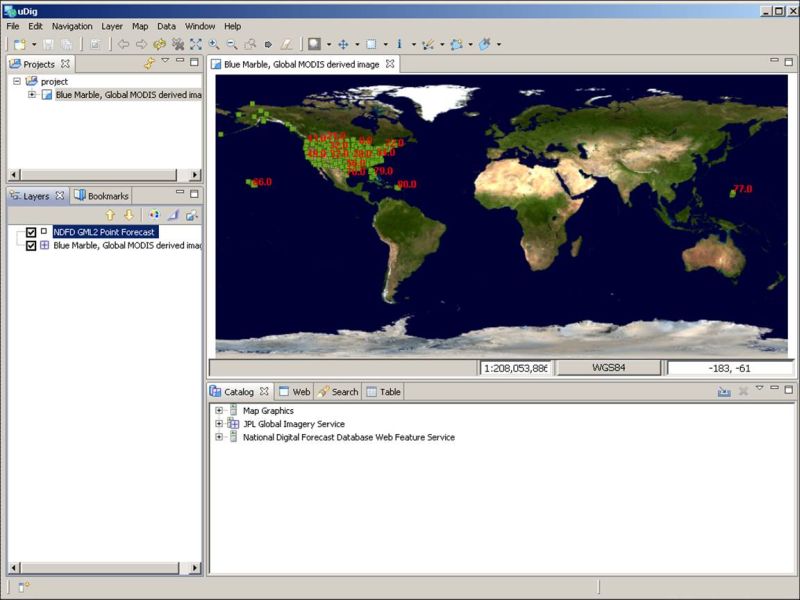
See the image below. Click the "Ok" button and uDig should display the element's value at each point on the
map. See the image below. |