| Home > NDFD > NDFD WFS |
|
|
Connecting Gaia to NDFD Web Services
The application
Gaia
can successfully import National Digital Forecaset Database (NDFD) data using the
Open Geospatial Consortium (OGC) Web Feature Service (WFS) standard. To import NDFD
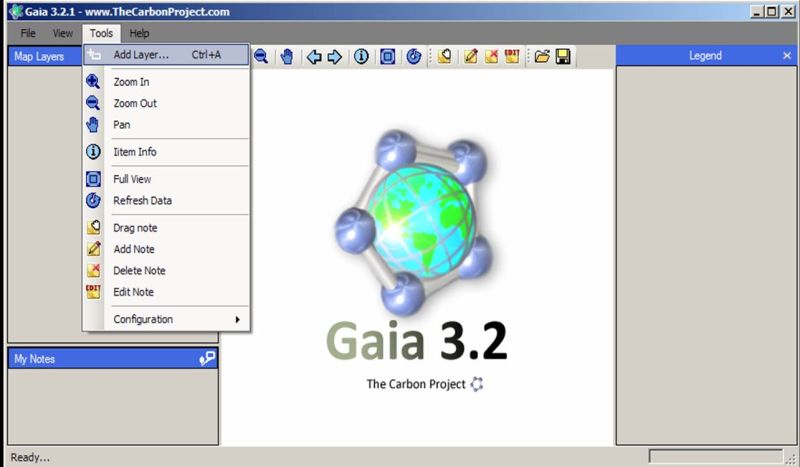
data follow the steps below: start Gaia and then select the "Tools" menu and then the "Add Layer"
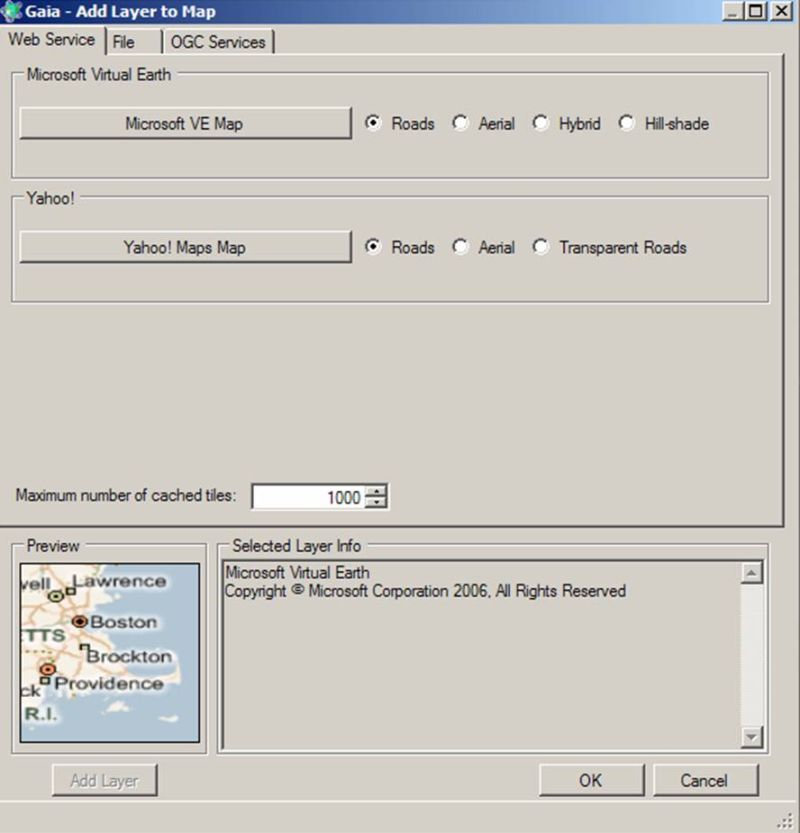
submenu item. See the image below. Ensure that the "Web Service" tab is in focus. Next click on the
"Microsfot VE Map" button. See the image below. Now click on the "Add Layer" button in the bottom left hand corner.
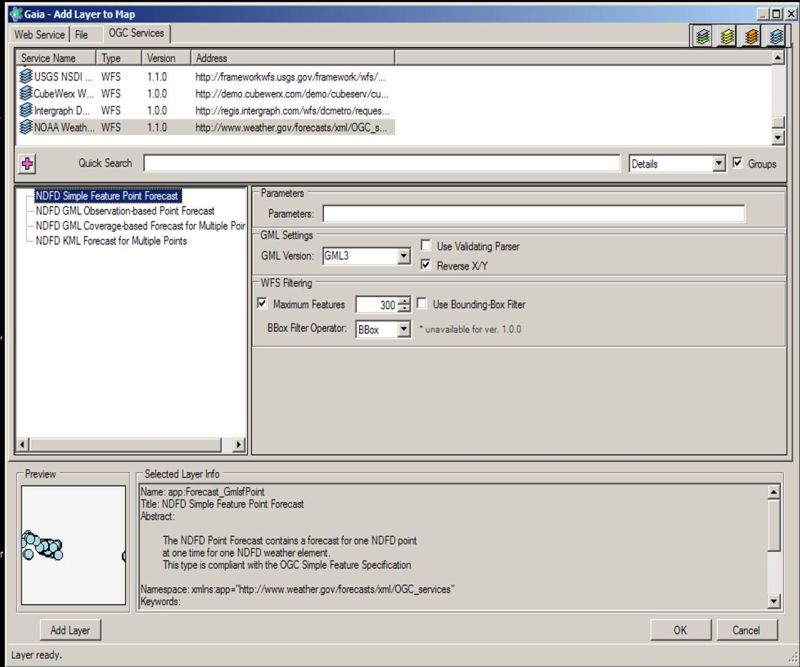
Next select the "OGC_Services" tab near the top of the
"Add Layer to Map" window. See the image below. Near the bottom of the list of services is a Web Feature Services section and near the bottom
of that section is a service called "NOAA Weather WFS". Next make the following
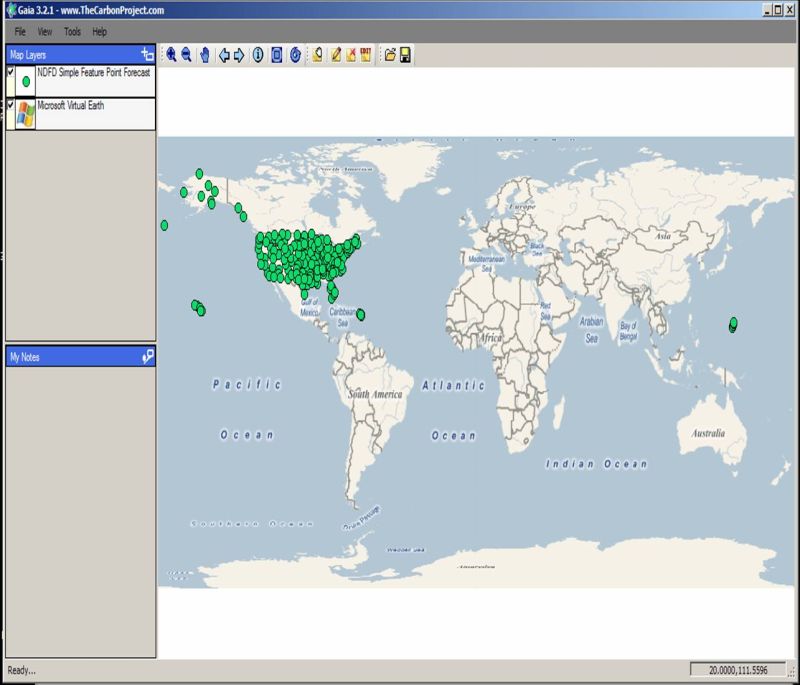
changes to the window's setting: Now double click on the "NDFD Simple Feature Point Forecast" entry in the middle pain of the window. Wait until the "Preview" pain has some points displayed. Then click on the "Add Layer" button in the bottom left hand corner. Finally, click the "OK" button to dismiss the "Add Layer to Map" window. After a minute or so, you should now see data points displayed on the current map.
See the image below. To display the data values (feature attributes) for each point, right click on the layer
name ("NDFD Simple Feature Point Forecast") in the "Map Layers" section
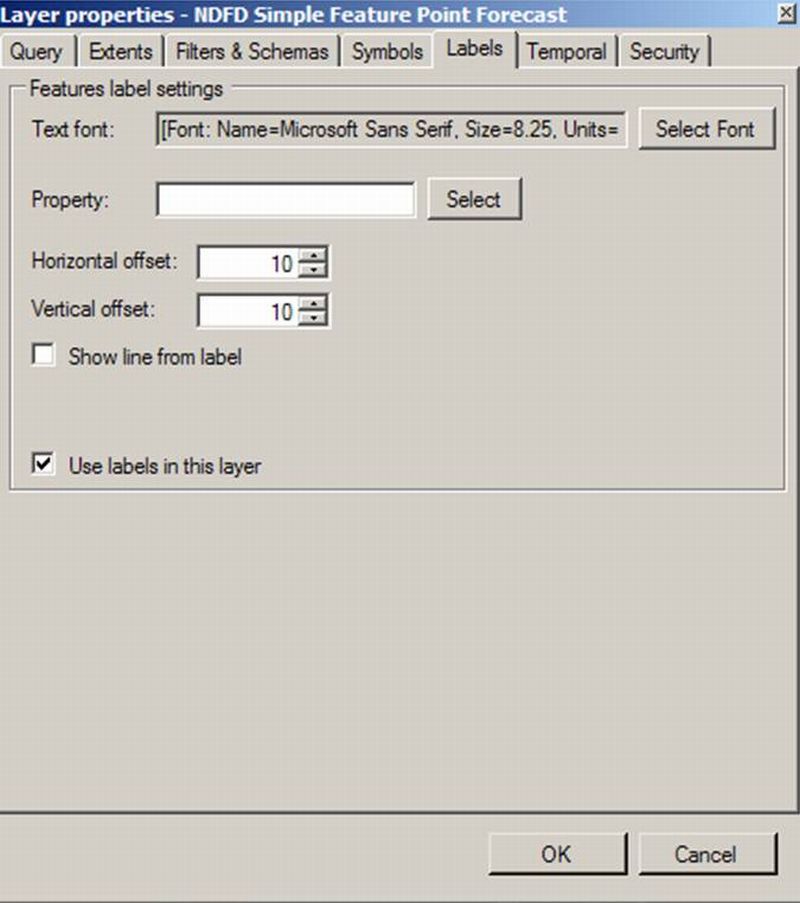
(upper left pain) of the Gaia window then select the "Properties" submenu item.
See the image below. Check the "Use labels in this layer" check box. Then click on the "Select"
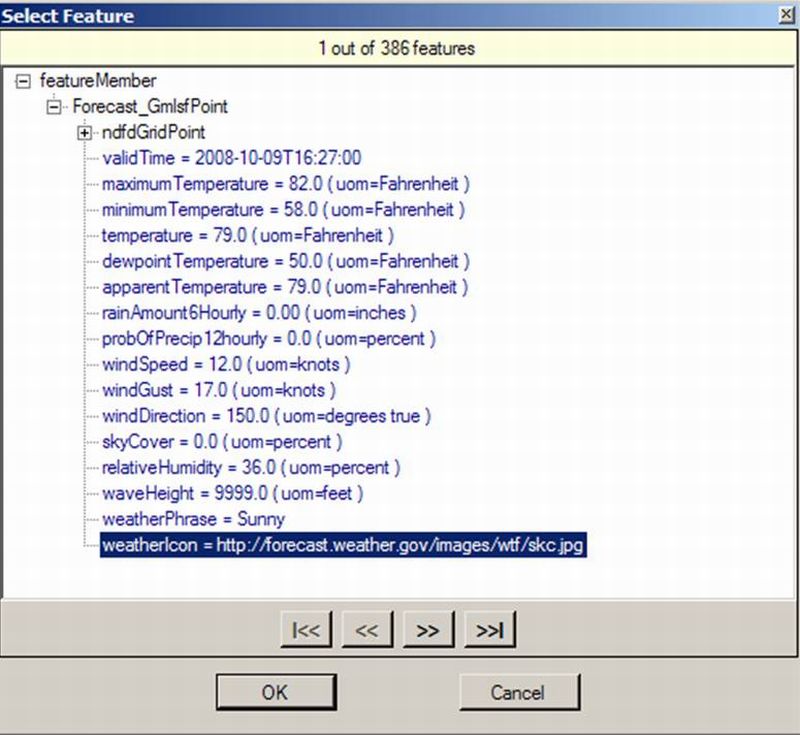
botton to the right of the "Property" data entry area.
See the image below. Click on the "maximumTemperature" attribute and then click on the "Ok"
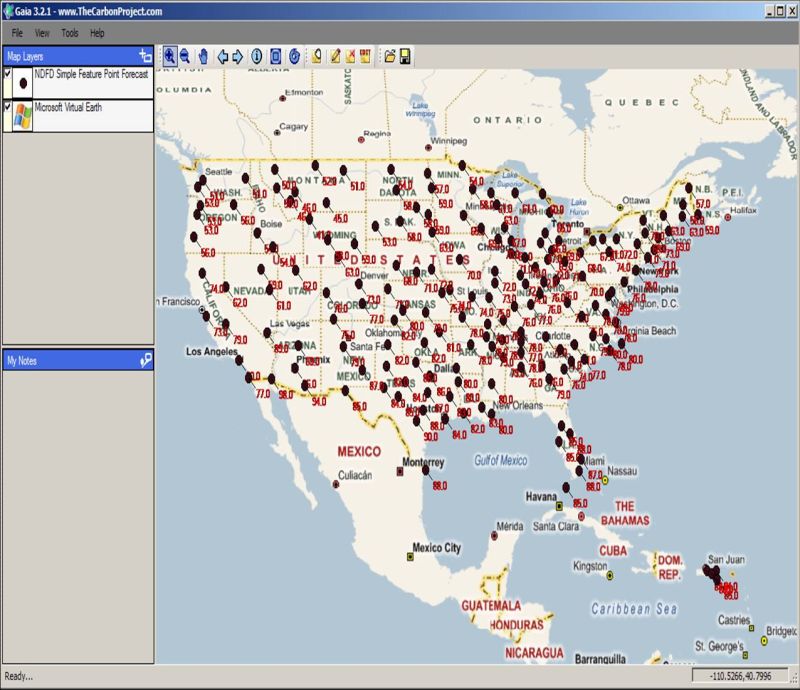
button. NDFD maximum temperature data should now appear on the map.
See the image below. |